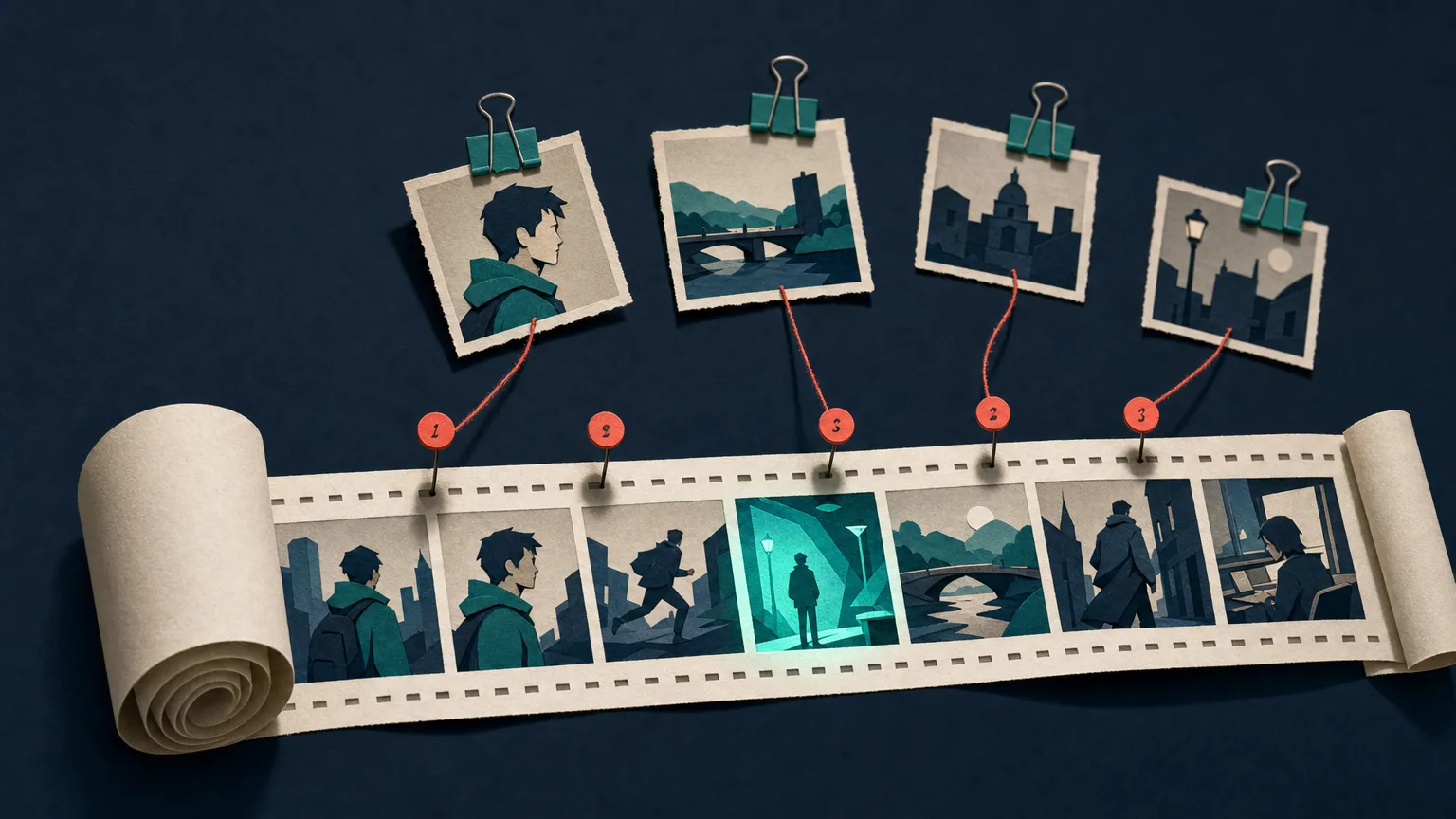
Seedance in one paragraph: Seedance is ByteDance’s AI video model family. The newest version, Seedance 2.5, can make a single clip up to 30 seconds long with native audio, and accepts up to 50 reference images, videos and audio clips in one request. You can use it in ByteDance’s Dreamina app, in CapCut in some regions, through other creative apps, or through the BytePlus API. ByteDance’s own prompt guide recommends a simple structure: a one-sentence summary, then a timeline of what happens, then details that stay the same throughout.
Based on ByteDance’s official Seedance 2.5 prompt guide, checked September 29, 2026. We haven’t run our own Seedance tests yet; results will be added to this guide.
Seedance 2.0 vs 2.5: What Changed
Both versions are still offered in many apps, so it helps to know which one you’re using. From ByteDance’s guide:
| Seedance 2.0 | Seedance 2.5 | |
|---|---|---|
Timestamps like 0-3s | Ignored (use “Shot 1, Shot 2”) | Supported, in whole seconds |
| Multi-angle character sheets | Not recommended | Supported |
| Aspect ratios | Six fixed ratios | Any ratio from 0.4 to 2.5 (set by your inputs) |
| MOV output for edits | No | Yes, for better color and audio continuity |
Seedance 2.5 also makes clips up to 30 seconds, takes up to 50 reference files per request, and generates speech in more than 10 languages.
ByteDance also notes that the two versions have noticeably different looks: the same prompt and image can come out in a different style. If you started a project in 2.0, finish it in 2.0, or use the workaround in the troubleshooting section below.
Where to Use Seedance (and Is It Free?)
- Dreamina (dreamina.capcut.com), ByteDance’s creative app, is the official home of Seedance 2.5. ByteDance advertises 4K and 30-second clips there.
- CapCut includes Seedance in some regions.
- Third-party apps such as Runway, Pika and Higgsfield offer Seedance models inside their own plans. Limits vary by app: Pika’s integration, for example, caps Seedance clips at 5 seconds and 720p.
- BytePlus ModelArk is the developer API.
Is Seedance 2.0 free? We couldn’t confirm a permanent free tier on ByteDance’s own pages. Apps that include Seedance sometimes run free trials or promotions, and Higgsfield offers a limited free plan, but what’s free changes often. Check the app’s pricing page before you start a big project.
If you want Seedance alongside Kling and Veo in one subscription, Higgsfield is one option (affiliate link; we may earn a commission at no cost to you. How we make money). Read our Higgsfield review first.
How to Use Seedance: Step by Step
- Open Seedance in Dreamina or the app you use, and choose the Seedance 2.5 model if it’s offered.
- Add references if you have them: a character image, a location, a voice clip or a video whose camera move you like.
- Write the prompt using the structure below.
- Set length and ratio. Start short (5 to 8 seconds) while you test.
- Generate, then refine. For a long or complex piece, split it into several simpler generations (ByteDance’s own advice).
The Seedance Prompt Structure
ByteDance’s guide says to “treat Seedance 2.5 as a visual content producer” and write with “a visual storytelling mindset.” Its recommended structure has four parts:
- Asset references (if you uploaded any): say what each file is for. “Image 1 is the main character. Video 1 is the camera movement.”
- One-sentence summary: subject + location + event + style + camera movement.
- Detailed plot: a timeline (
0s-3s,3s-8s) or shot list (Shot 1,Shot 2), with the visuals, camera, actions, dialogue and sound for each part. - Additional notes: anything that stays the same throughout, such as camera angle, lighting, environment, sound and mood.
Here’s the structure in ByteDance’s own example (shortened):
Realistic nature documentary style, natural lighting and shadows. On a warm afternoon, on a grassy slope in the forest, a chubby panda cub rolls down the hill.

0s-3s: A panda cub lies on a green grassy slope... It begins to slowly roll sideways down the slope with clumsy movements...

3s-8s: The panda rolls toward the lower right of the frame and gradually comes to a stop... makes a soft little humming sound.

Low camera position, slight handheld feel, subtly following the panda as it moves toward the lower right... Natural environmental audio only, including wind, rustling grass, and the soft plop of the panda rolling.
Timestamps in Seedance 2.5
Timestamps are the clearest way to pace a longer clip. ByteDance’s tips:
- Use whole seconds and leave no gaps:
0-3s... 3-7s... 7-15s, not0-3s... 5-6s. - Balance the content. Too little in a time range and the model improvises; too much and you get extra cuts or skipped actions.
- Time points and relative timing work too: “At the 5-second mark, a burst of golden lightning descends,” or “After 3 seconds, everyone around him shakes their head.”
- Don’t time rapid, repeated motion like “shake your head three times per second.”
Remember: Seedance 2.0 ignores timestamps. In 2.0, write Shot 1, Shot 2 instead.
Reference Images, Video and Audio
Seedance 2.5 takes up to 50 references per request: up to 30 images (up to 4K), plus up to 10 videos and 10 audio clips, each group totaling no more than 30 seconds. The key is to label every file in the prompt by its upload order:
- “The knight in Image 1.”
- “Images 1-2 are Character 1 and correspond to Audio 1; Images 3-4 are Character 2 and correspond to Audio 2.”
- “Refer to the action of casting the spell in Video 1 and the wrap-around camera movement in Video 2.”
ByteDance’s recommendations:
- 1 to 8 characters from images, or 1 to 5 from video or audio, give the most stable results.
- Upload characters in the order they first appear, so Image 1 is the first person on screen. This fixes mixed-up characters.
- Don’t rely on names written inside images. Write the mapping in the prompt instead.
- If a reference video already shows the action, just say so: “Strictly refer to the actions and camera movements in Video 1.” There’s no need to re-describe every movement.
- Storyboards: simple line-art or stick-figure boards with 15 panels or fewer work best, with no text on the panels. A storyboard guides the plot loosely. For a strict match, upload each frame separately and write “Use Images 1 to 7 in order as keyframes.”
Camera Language
Standard film terms work directly: shot sizes (wide, medium, close-up), moves (push in, pull out, pan, track, orbit, tilt up, handheld) and angles (low angle, overhead, first-person). So do named techniques such as one-shot long take, dolly zoom, FPV, bullet time and speed ramp.
For anything niche, ByteDance suggests the term plus a plain explanation:
Rack focus: the focus shifts smoothly; the trees in the foreground become blurred, while the character in the background gradually becomes clear.For transitions, give the time and the method: “At the 5-second mark, the camera quickly transitions leftward using a left wipe combined with a natural dissolve.”
Dialogue, Sound and Subtitles
Seedance generates speech, sound effects and music with the picture. A few rules from ByteDance’s guide:
- Positive descriptions are best, but negatives do work for subtitles and audio: “No subtitles,” “No BGM; generate only environmental sounds and action sounds,” or “No audio.”
- Format lines like a script to avoid unwanted subtitles: Grandmother’s line (voice trembling): “It’s really you.” Don’t repeat words after a line or attach instructions to single words.
- If music still sneaks in, list every related word (music, background music, BGM, score, instrumental, melody) and repeat the no-music instruction at the start and end of the prompt.
Editing and Extending Videos
Seedance 2.5 can also edit an existing clip. Use a trigger word like add, remove, replace, change to or extend, and describe the change from A to B:
- “Change the man’s action from drinking coffee to mopping the floor from 4-6 seconds in Video 1, and leave the rest of the content unchanged.”
- “Replace the character in Video 1 with the woman from Image 1.”
- “Extend Video 1 backward: …”
Editing keeps the original clip’s aspect ratio and length. ByteDance recommends clips of 20 seconds or less for editing, and MOV files for the smoothest extensions.
Fixing Common Seedance Problems
From ByteDance’s troubleshooting section:
| Problem | Fix |
|---|---|
| Glowing eyes on emotional characters | Add “normal human eyes; no glowing eyes,” and use calmer words (“amazed” instead of “extremely shocked”) |
| Misspelled on-screen text | Spell the word letter by letter, or upload the text as an image |
| Characters swapped with each other | Upload references in the order characters appear, and renumber |
| Style changed between 2.0 and 2.5 | Extend your 2.0 clip in 2.5 with MOV output to keep the 2.0 look |
| Fingerprint-like textures in grass | Resize reference images so they’re no larger than the output video |
| Bubbling or echo sounds | Remove words about water, waves or echoes |
| Complex request comes out wrong | Split it into separate reference and edit passes |
Seedance Prompt Checklist
- Start with a one-sentence summary
- Label every uploaded file: “Image 1 is…”
- Use whole-second timestamps in 2.5, “Shot 1, Shot 2” in 2.0
- Keep a steady description of what doesn’t change
- Say “no subtitles” or “no BGM” if you need to
- Break big ideas into several simpler generations
Next Steps
- Build a structured video prompt with the Video Prompt Builder
- Compare the same ideas in Kling with our Kling 3.0 Guide
- Learn Google’s approach in our Veo 3 Prompting Guide
- See how Seedance ranks in Best AI Video Generators